Your terminals, always on.
Close the browser, come back anywhere, and pick up exactly where you left off. Termavox is a self-hosted runtime that holds your SSH sessions open on a server you control; the browser is only a view.
The browser lifecycle is not the terminal lifecycle.
In most web SSH tools, the browser tab is the session: close the laptop or lose Wi-Fi, and the connection dies with it. Termavox flips that around. It keeps every session open on its own server, indefinitely, until you end it. Browsers only attach and detach, and when you come back, from the same laptop, another computer or your phone, the terminal is exactly as you left it.
| What happens… | Typical web SSH | Termavox |
|---|---|---|
| You close the browser tab | Typical web SSHThe SSH session dies | TermavoxKeeps runningNothing; the session keeps running |
| You reopen it on another device | Typical web SSHYou start over | TermavoxSame screenInstantly, full-screen apps included |
| Your Wi-Fi drops for a minute | Typical web SSHThe session is lost | TermavoxReconnectsBehind the scenes; the shell never noticed |
| The Termavox service restarts | Typical web SSH— | TermavoxRestoresProtected sessions come back as they were |
| Two devices open the same session | Typical web SSHUsually not supported | TermavoxBoth attachThe one you are typing on sets the size |
How it works
Three ideas carry the design.
 Termavox
Self-hosted: authoritative terminal emulators
Termavox
Self-hosted: authoritative terminal emulators
vim, htop…
- A terminal emulator lives on the server
- For every session, Termavox keeps an authoritative emulator fed with the raw SSH output. A browser that attaches receives a snapshot of that state followed by the live stream, so it renders an exact copy, alternate screen and terminal modes included.
- tmux protects sessions, and you never see it
- Every SSH session runs inside a dedicated tmux on its server, driven through tmux's control mode: no status bar, no prefix key, normal scrollback. After a network drop or a restart, Termavox reattaches and rebuilds the screen and history. Servers without tmux still work, marked as not protected.
- Sessions belong to the service, not the browser
- The web app manages users, servers, credentials and layout; the session manager owns connections, emulators and reconnection. Deploying a new web version never drops a terminal.
Where it fits
For anyone who keeps shells open on remote machines and wants to reach them from anywhere.
- A development server or a VPS
- Keep editors, builds, test watchers and log tails running on the machine where the code lives, and pick them up from your laptop, another computer or your phone.
- Long-running jobs and coding agents
- A deploy, a migration, a data job or an AI coding agent working in a terminal keeps going while your laptop sleeps. Check on it from any browser.
- A remote shell in the browser
- A self-hosted, web-based SSH client, and an alternative to Apache Guacamole when what you need are terminals that stay open: no SSH client or key on the device you happen to use, host keys verified, credentials encrypted on your server.
- On call from a phone
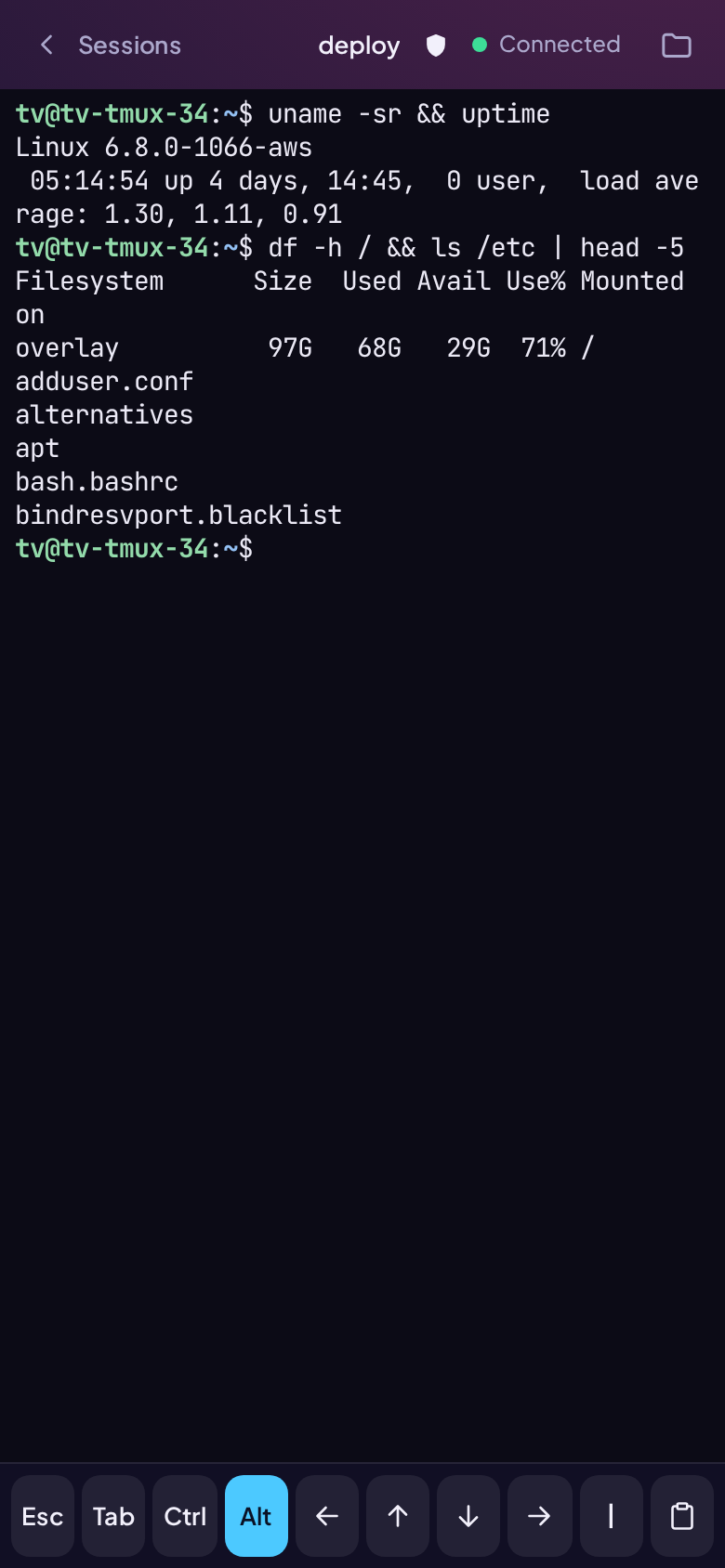
- The session list, a full-screen terminal and an extra-key bar for Esc, Ctrl, Alt, Tab and the arrows.
It works alongside the tools you already use. Termavox runs tmux for you, invisibly, so you never type tmux attach again, and your own tmux, Zellij, Herdr or any other terminal program still runs inside a session and keeps going when the browser leaves.
A look around
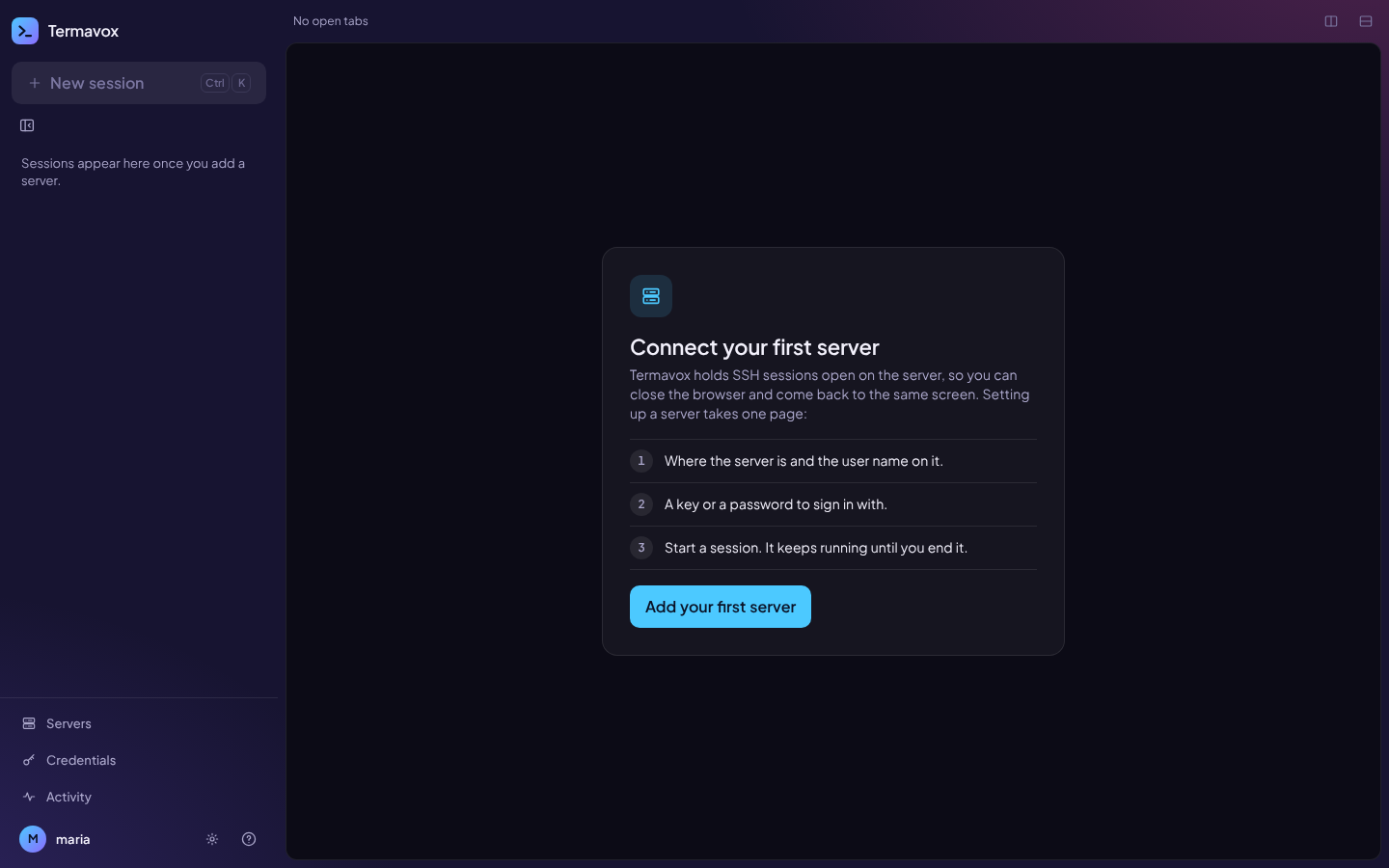
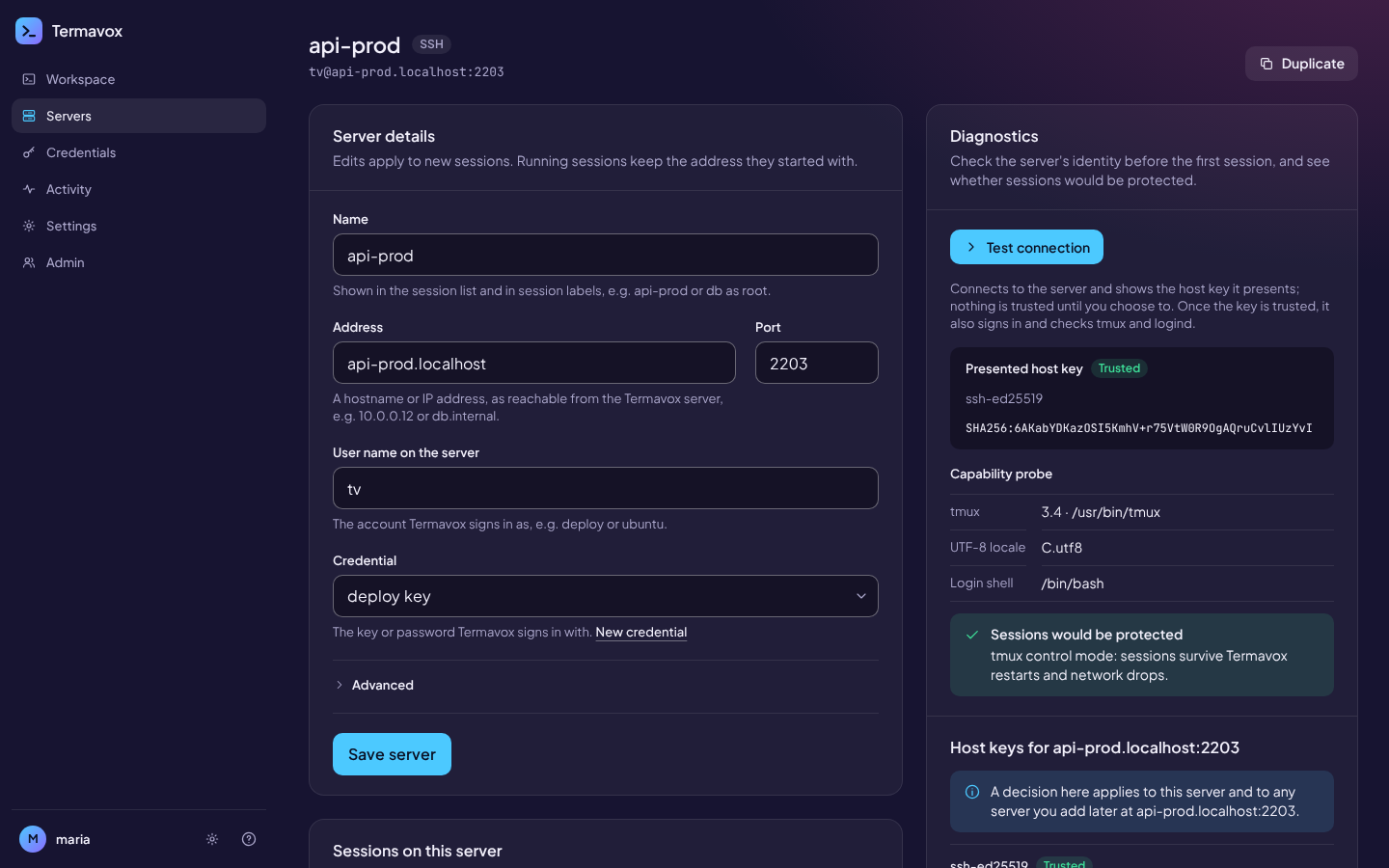
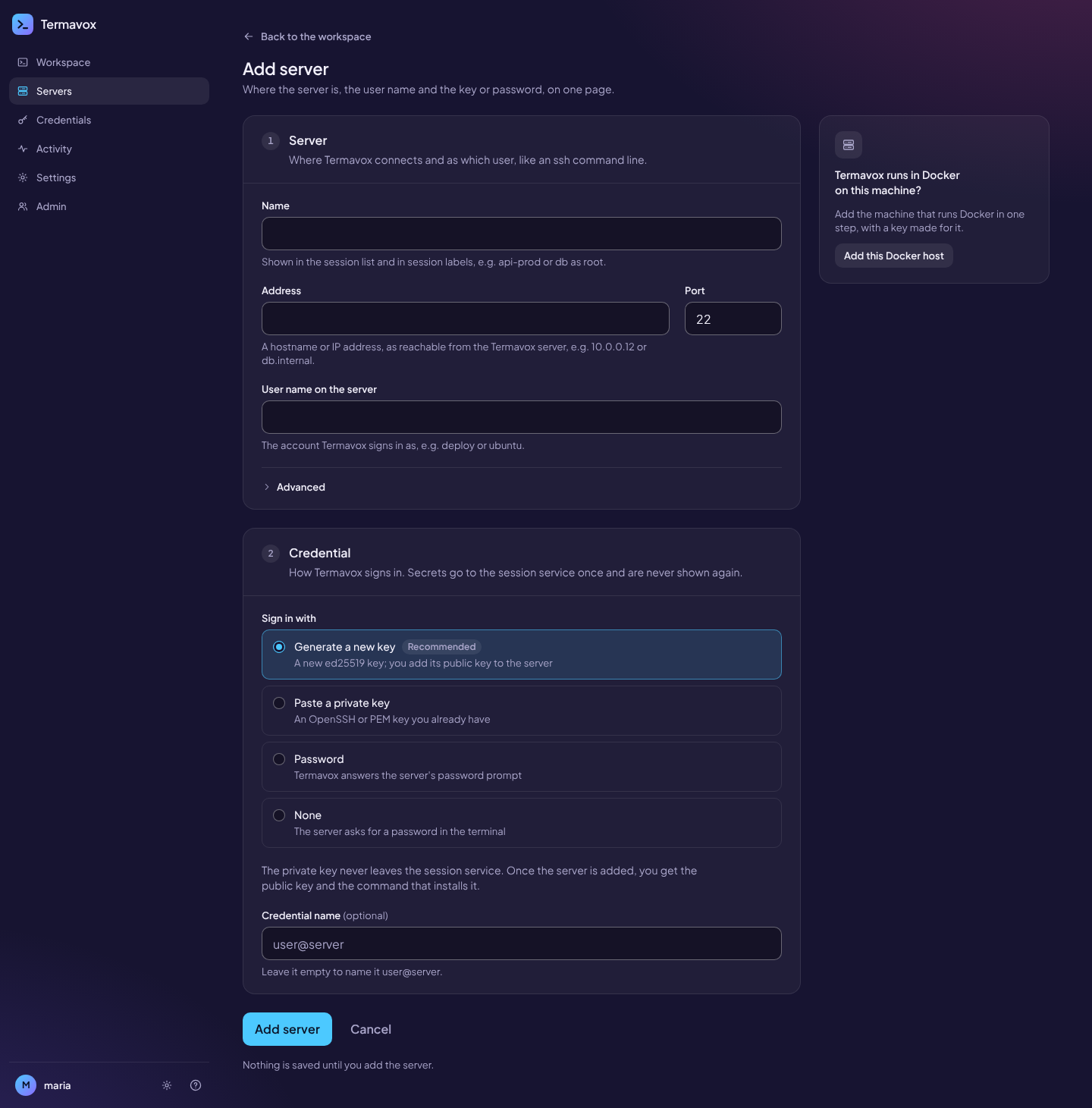
Real captures against test SSH servers.
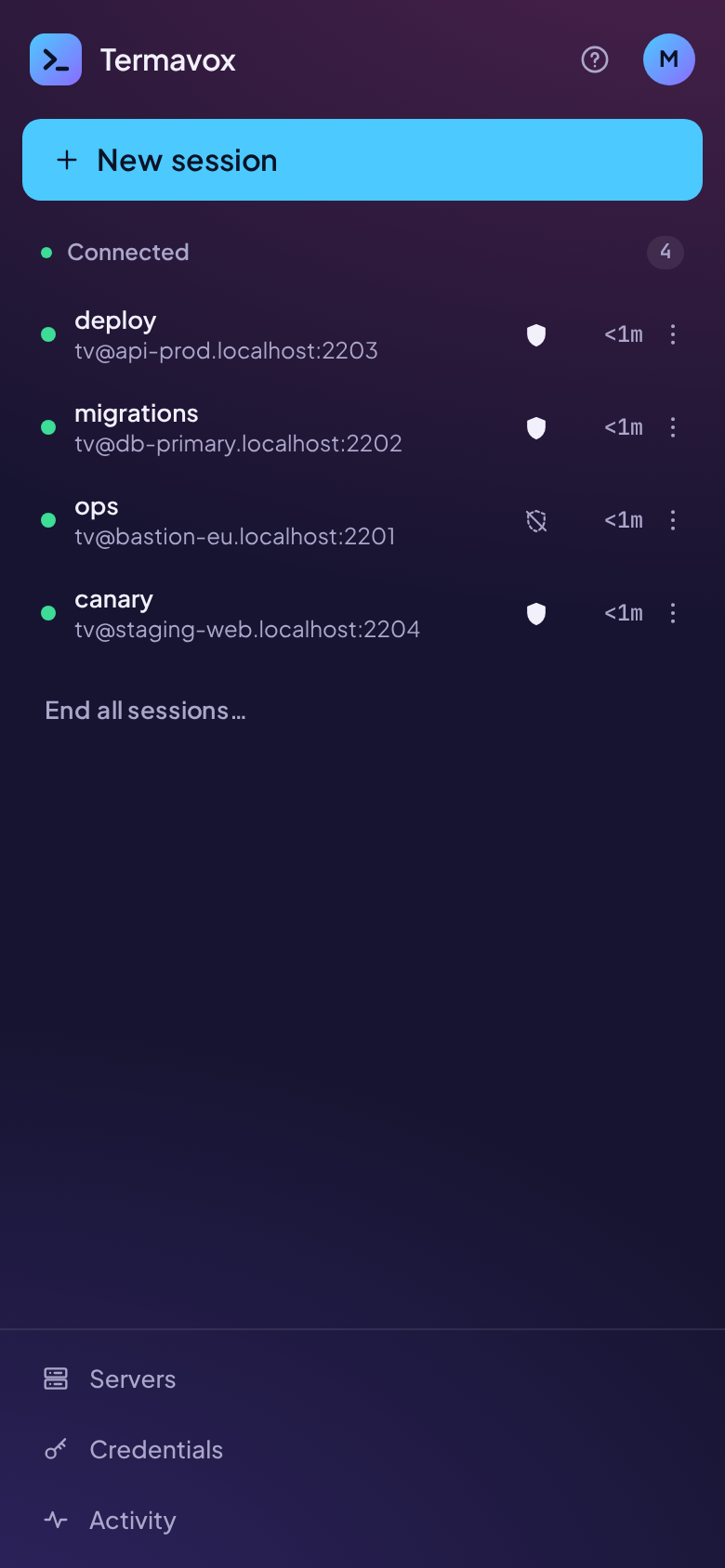
What you get
- Persistent SSH sessions that survive closed tabs, flaky networks and service restarts.
- Automatic, invisible tmux protection, detected per server, with an honest fallback.
- A workspace with a session sidebar, tabs and split panes, saved on the server and restored in any browser.
- A file panel beside each terminal: upload, download, rename, delete and new folders, over the session's own SSH connection.
- Usable from a phone, with a responsive layout and an extra-key bar.
- Several users, strictly isolated: each sees only their own servers, credentials and sessions.
- Built like a bastion: credentials encrypted with a key only the data plane holds, explicit host-key trust, two-step login, audit logs.
- SSH keys, passwords and 2FA prompts, the prompts relayed to your browser.
- English and Brazilian Portuguese.
- One-command deployment with Docker Compose and Caddy, automatic HTTPS included.
Run it
Three containers behind a single origin: Caddy for TLS, the web app and the session manager. You need Docker with Compose v2 on a Linux host.
A release
With the images it publishes for amd64 (arm64 coming soon).
git clone https://github.com/ativaone/termavox.git termavox && cd termavox
git checkout v0.1.0                            # the release to install (see Releases)
deploy/scripts/init-secrets.sh                 # generate the secrets; back up deploy/secrets/master_key
cp deploy/.env.example deploy/.env             # the settings: edit them before starting (below)
docker compose -f deploy/compose.yaml pull     # the release's images from ghcr.io
docker compose -f deploy/compose.yaml up -d    # start the stack
docker compose -f deploy/compose.yaml logs web | grep "setup token:" | tail -n 1
The latest source
With the images built on this host: it needs a couple of GB of memory free, and is also the way to run it on arm64 for now.
git clone https://github.com/ativaone/termavox.git termavox && cd termavox
deploy/scripts/init-secrets.sh                 # generate the secrets; back up deploy/secrets/master_key
cp deploy/.env.example deploy/.env             # the settings: edit them before starting (below)
docker compose -f deploy/compose.yaml up -d --build
docker compose -f deploy/compose.yaml logs web | grep "setup token:" | tail -n 1
Edit deploy/.env before you start. As copied, it serves https://localhost with a certificate from Caddy's local CA, for a trial on this machine. For another name, set TERMAVOX_DOMAIN to it, with TERMAVOX_TLS=auto for a public domain (a Let's Encrypt certificate) or internal for a LAN name or an IP address. The last command prints the one-time setup token and the address where it creates the first admin. The installation guide covers domains and TLS, reverse proxies, verifying the images, backups, upgrades and troubleshooting.